
There may be occasions when you would prefer to link people directly to your program in the editor without the additional step of clicking edit to get to the program.
Linking directly to a program
This URL https://makecode.microbit.org/_Mqt25iTbMX2s generated by sharing the MakeCode program will take you to a screen with the editor embedded underneath the title of the project and a button to edit.

By prefixing the part of the URL that has the unique ID of the project with #pub: eg. https://makecode.microbit.org/#pub:_Mqt25iTbMX2s you can take people directly to same project inside the editor.

Linking directly to a tutorial
Sharing a featured tutorial
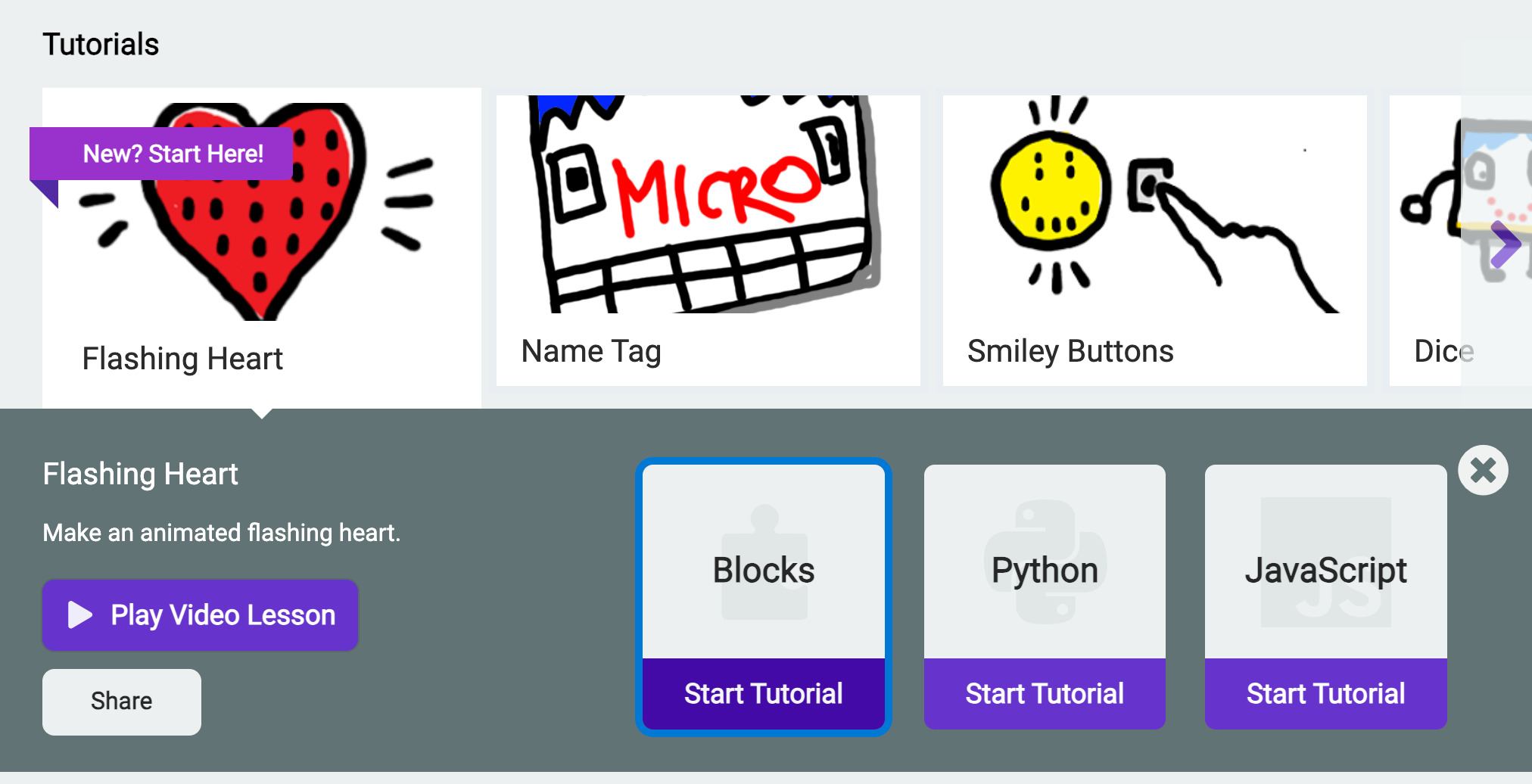
To link to featured tutorials in MakeCode, select a tutorial you want to share in the MakeCode homepage and then click “Share”.
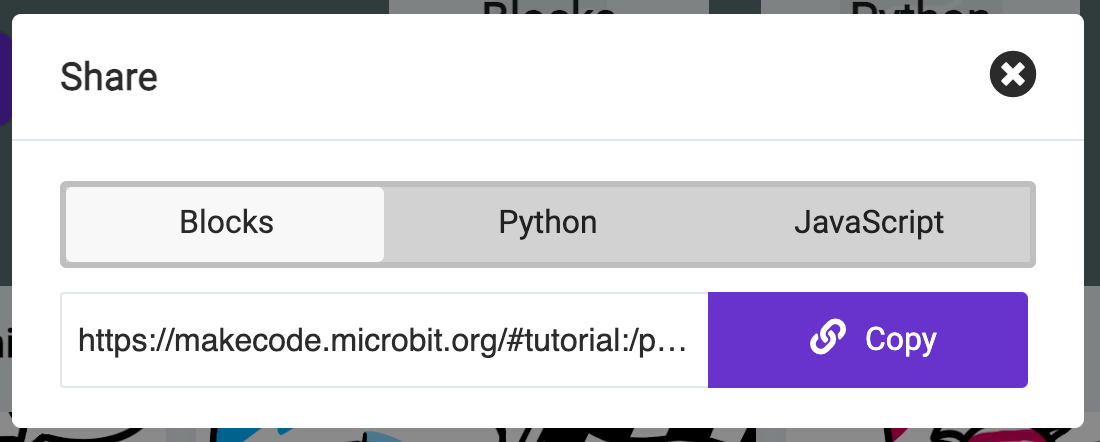
Choose “Blocks”, “Python”, or “JavaScript” and then click “Copy” to copy the sharing link for the tutorial.
Sharing a tutorial you have created
This MakeCode guide shows you how you can create your own tutorial.
To link users to a tutorial you have created, prefix the shared project URL with #tutorial using the format:
https://[editor url]/#tutorial:[shared project url]For example:
https://makecode.microbit.org/#tutorial:https://makecode.microbit.org/_H8EbLAi2DE0a