
Overview
The Micro:bit Educational Foundation YouTube videos can be translated into a range of languages. This work is kindly supported by micro:bit community volunteers.
To contribute a subtitle translation, you will first need to volunteer as a translator. Once we have your details, a member of the Micro:bit Educational Foundation team will invite you to the Amara video subtitling workspace, which is where we manage video translation. You must be 18 or over to join.
Contents
- editing a translation in Amara
- navigating the Amara workspace
- proofreading and publication
Editing a Translation in Amara
This is a 3 step process, the video below demonstrates this process using the Amara editor.
Add your translation of the English transcript
Editing a translation in Amara is a simple three-step process. First you add your translation of the English transcript.
The original transcript is available on the left of the screen. In the middle of the screen we add our translation.
The right of the screen gives us notes and tips on how to manage our translations. For example to manage the line length.
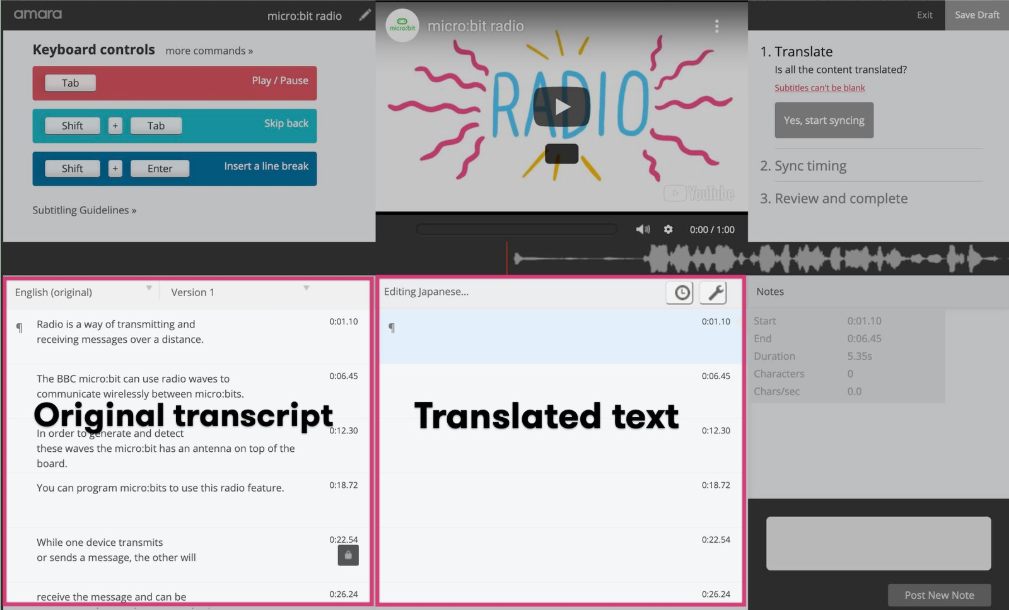
The notes section can be used to leave notes for other translators, however leaving a note does not send a message to the translator or to the Foundation team. You should use the message option and add a link to the video in your message if you wish to contact the team.
Sync the timing of your translation to the original audio
When you're happy that you've added your translations you can press 'yes start syncing'. To sync the timing of your translation to the original video.
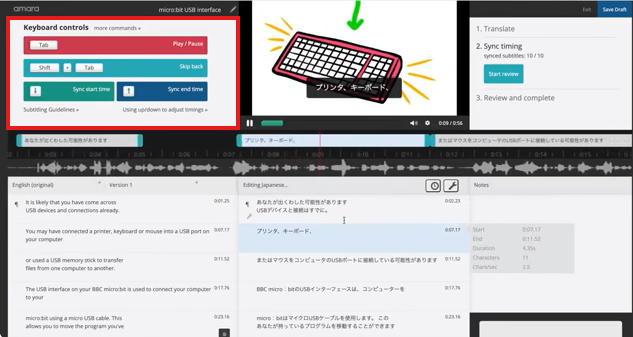
The timings can be set using the keyboard controls or by moving the translated text around in the editor.
Review your translation and ‘Publish’
Once you're happy you've completed the timings and addressed any issues in the notes panel, you can start a review.
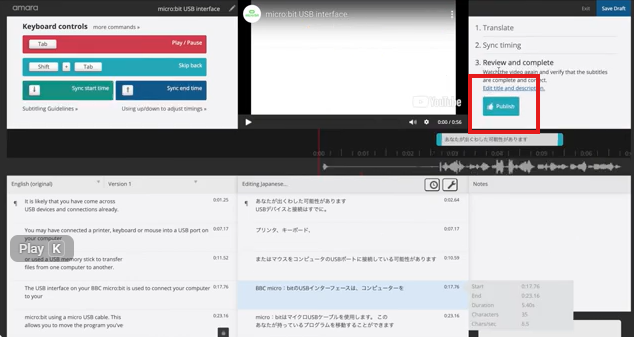
When you're happy with the review click 'Publish'. Once a translation has been published in Amara it will be reviewed by the Foundation team, so you do not need to take any further action in Amara once you have selected 'publish'. When it has been reviewed it will be published on YouTube.
This video from the Amara team also describes additional features available in the editor, designed to make translating subtitles quicker and easier.
Navigating the Amara Workspace
When you log in, you will be presented with a list of teams that you contribute to. Select Go to team on the Micro:bit Educational Foundation tile.

Dashboard
The Dashboard provides an overview of the activity in the Team Workspace. It is the first place to look to see if you have any available videos that require subtitles in your language.
In this example, there are four videos that I can add a translation to. These are indicated by the ‘Translate’ button which includes the language code for translation. For example ‘Translate [ja]’ indicated that I can provide a translation in Japanese.
Clicking on Translate will open the subtitle editor.

Videos
The Videos tab lists all available videos that you are able to contribute a translation to. You can also filter by subtitle language, whether the video needs subtitles or if they are complete and the video duration.

Selecting a videos ‘Details’ button will open a temporary pop-up window to let you play the video and view / edit / add subtitles.

Selecting a video will open the video on its own new page with further details about the video. You have similar options here to view / add / edit subtitles.

Members
The members view shows you a list of current Amara members assigned to the micro:bit project. from here you can select a member to view their profile and contributions and send them a message. Contact the ‘Microbit_Educational_Foundation’ owner to get in touch with a member of the Foundation team.

Activity
The activity tab lists all interactions in Amara and you have a range of filters for these activities too. For example, you could see who has contributed to a particular video recently.

Profile
The user profile button (in green) gives you quick access to account details and messages you have sent and received.

Proofreading and publication
When you're happy with the review click 'Publish'. Once a translation has been published in Amara it will be reviewed by the Foundation team, so you do not need to take any further action in Amara once you have selected 'publish'. When it has been reviewed it will be published on YouTube.