
Overview
- You can now create and share a link to an existing CreateAI project containing starter data and code, and MakeCode extensions.
- This could make starting a project in CreateAI easier for your learners, particularly if the project contains complex code that could otherwise be difficult or time-consuming to set up in the classroom.
- Now your learners can click on a link in your educational materials to open an existing CreateAI project and edit the starter data according to your instructions.
Here’s how to generate a link that opens an existing project in CreateAI:
- Create a project in CreateAI as normal.
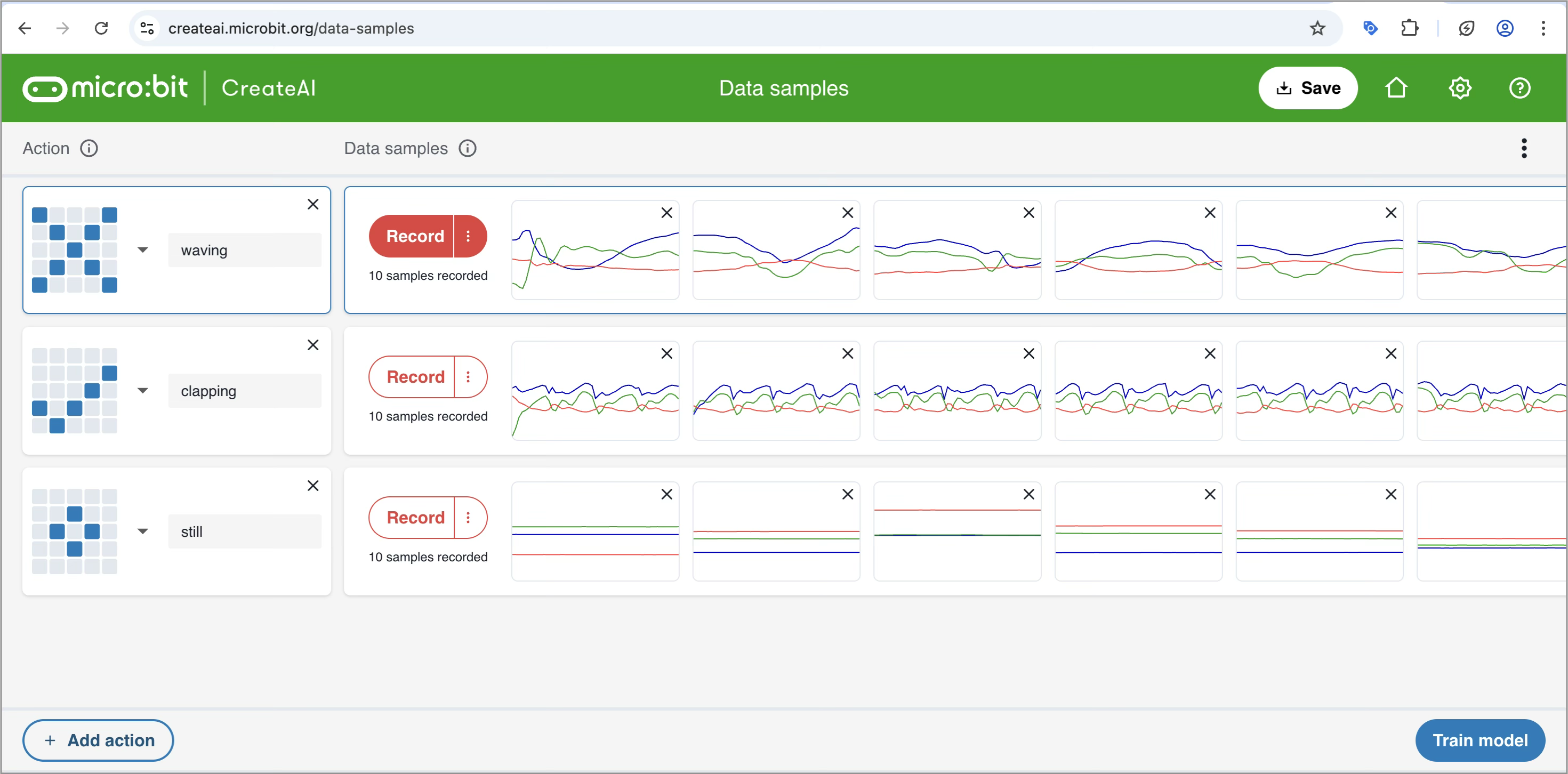
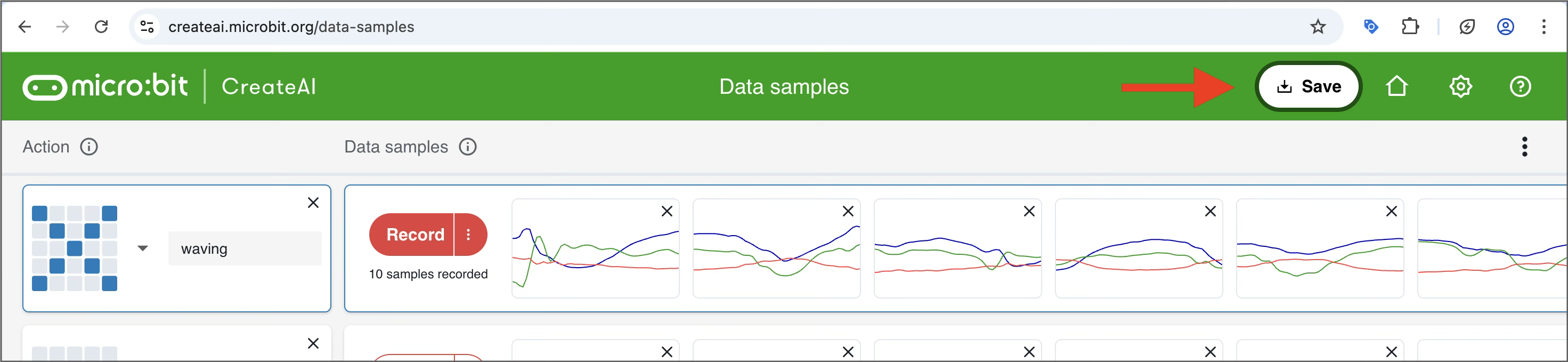
- Save the project in CreateAI using the “Save” button on the green toolbar.
 or click “Download as File” in the MakeCode code editor to download the hex file.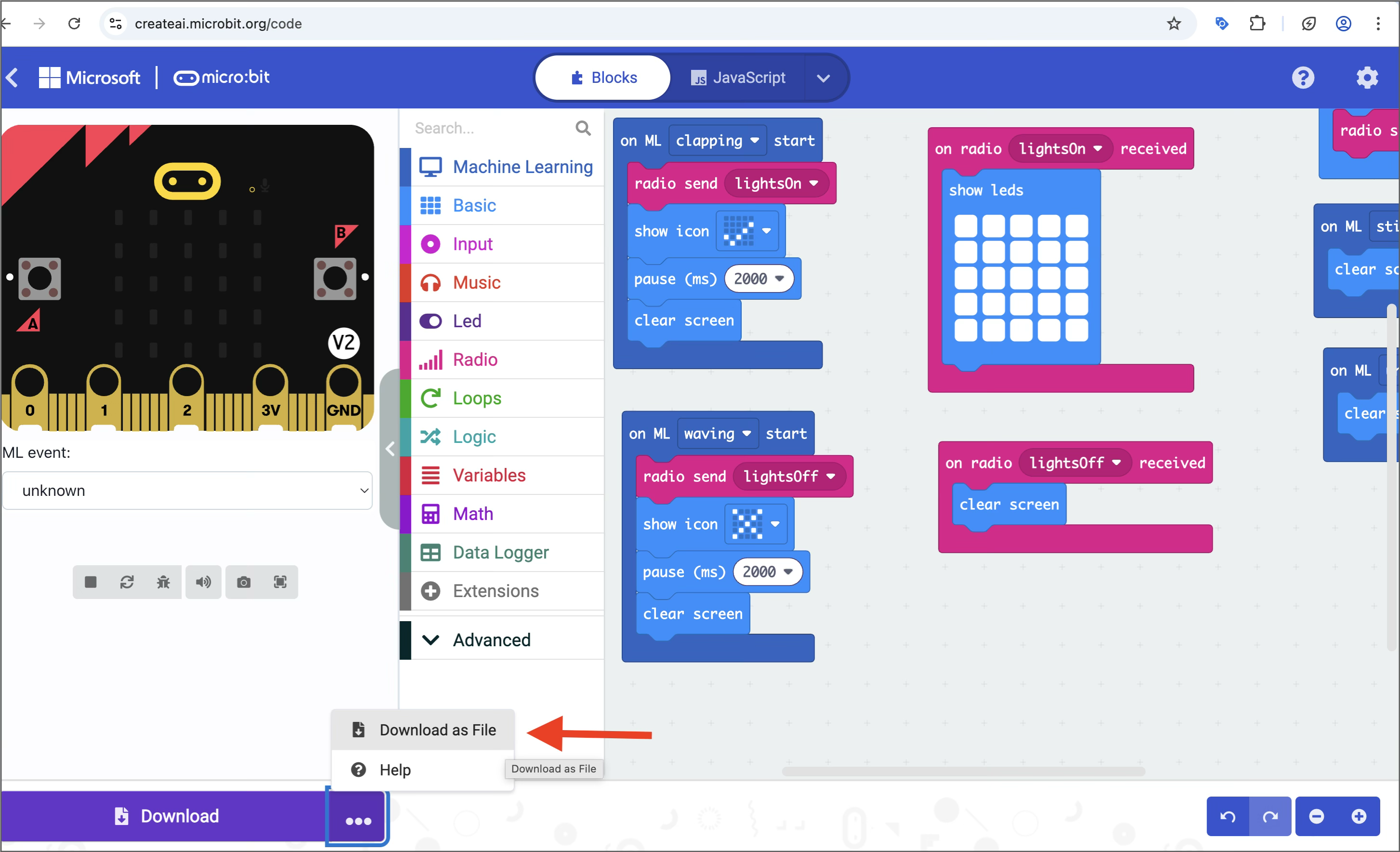
- Go to https://makecode.microbit.org/
- Open the saved hex file by dragging and dropping it over MakeCode editor.
- Note that this will only show your code, but the actions and data samples are still part of the project.
- In MakeCode editor, click the button with the share icon in the top right corner.
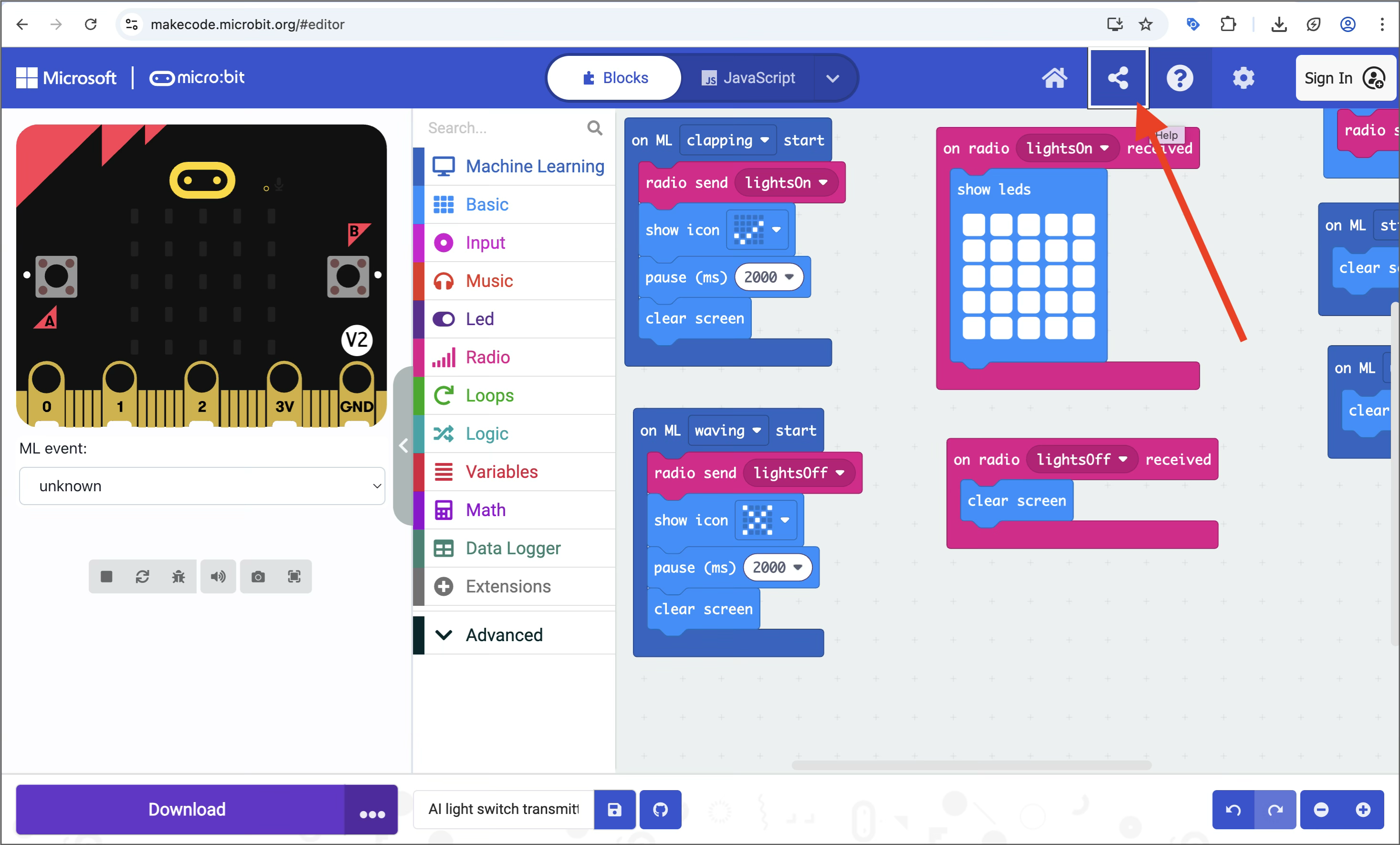
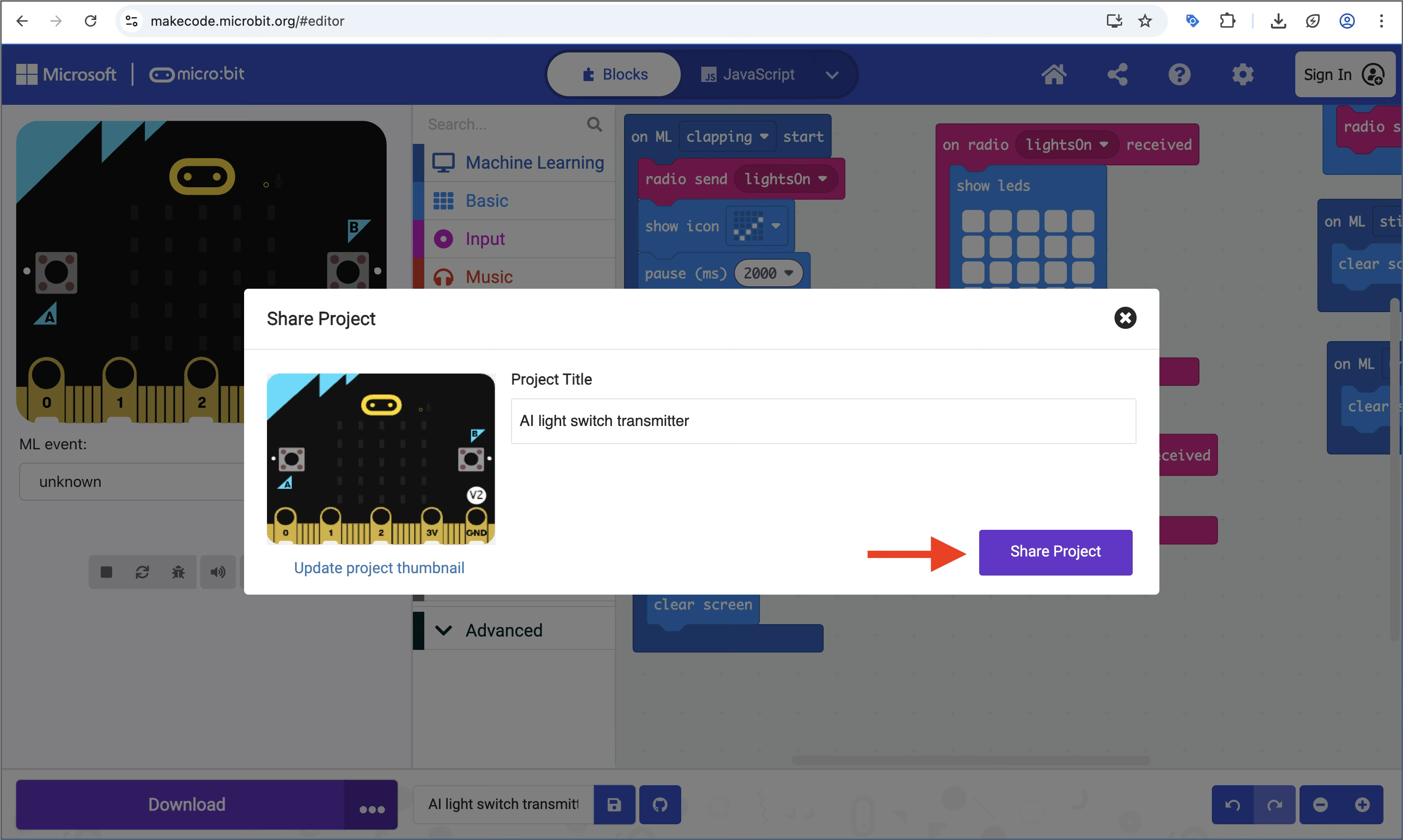
- Click ‘Share Project’ button.
- Copy the link.
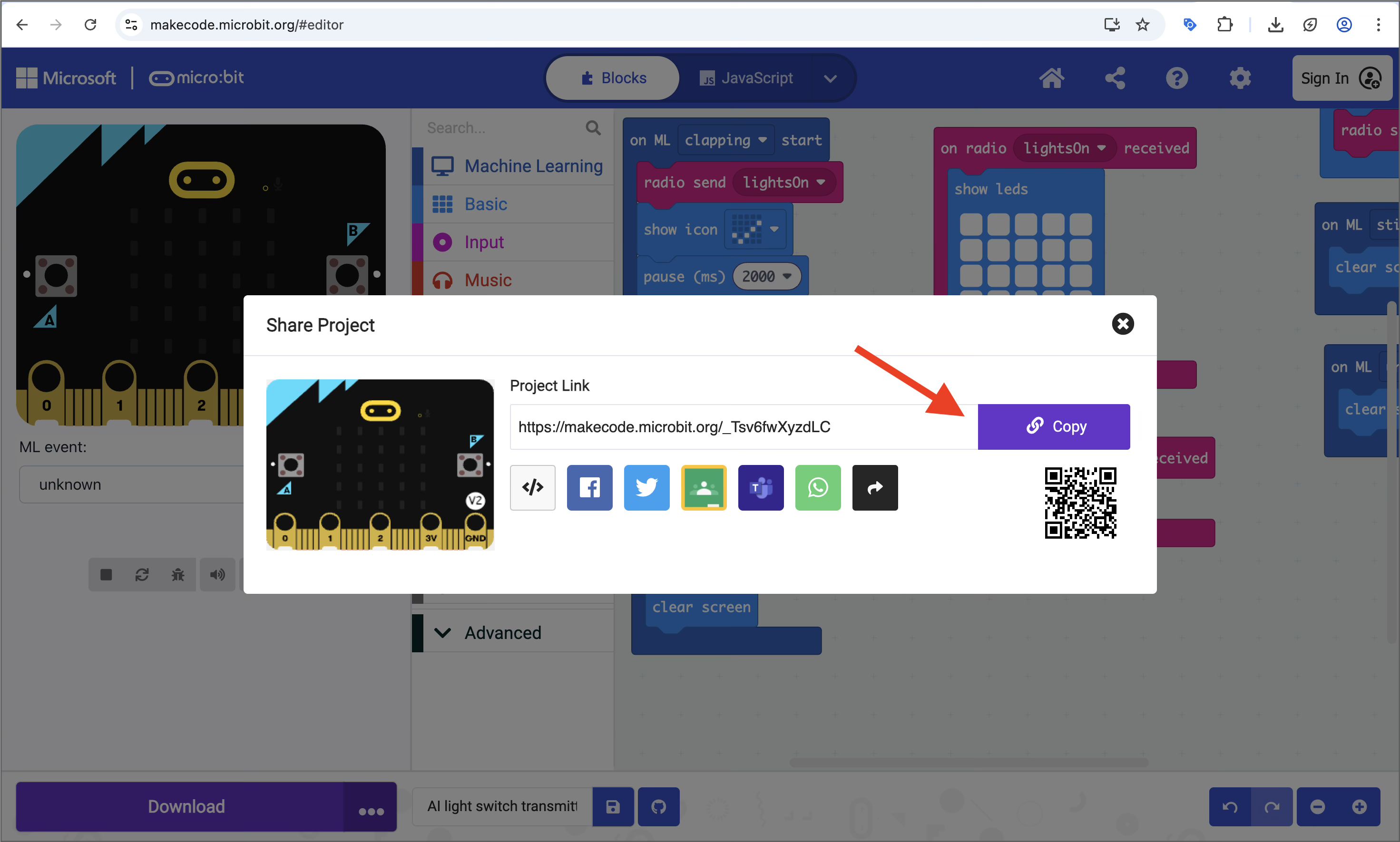
- Edit the copied link to convert it to one that will open in CreateAI rather than MakeCode:
- Replace "makecode” part of the link with “createai”, taking care to make no other changes, e.g. change https://makecode.microbit.org/_amHRq13MF28v to https://createai.microbit.org/_amHRq13MF28v
- Share this amended link with your users.
- When the user clicks on the CreateAI link, they will go to a landing page, showing data preview and a prompt to open the starter project.
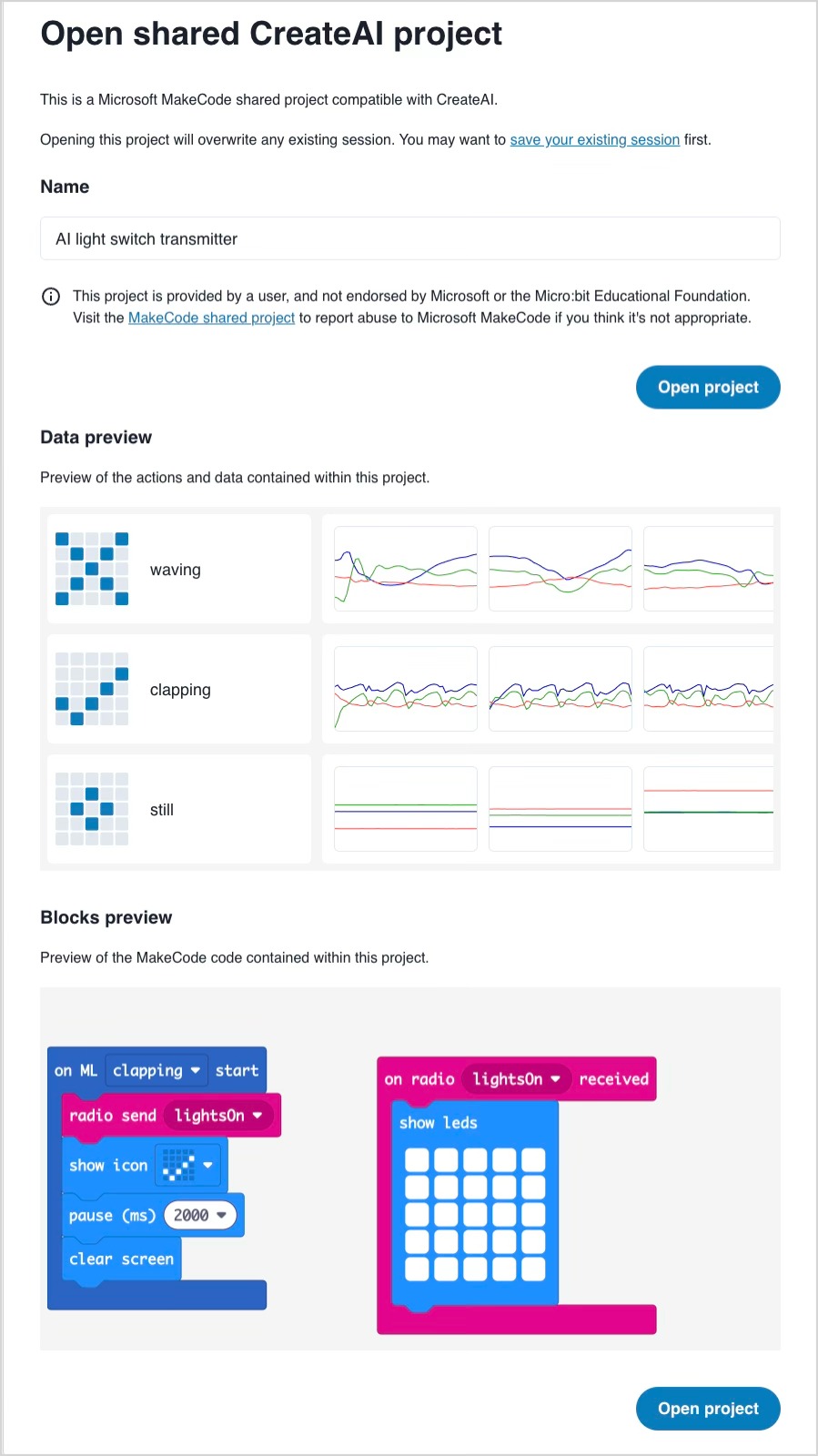
- When the user clicks on the CreateAI link, they will go to a landing page, showing data preview and a prompt to open the starter project.